The motivation behind this tool is simple: I wanted a dedicated place to practice speaking with frameworks so my thoughts come out structured.
I organized the walkthrough from the demo video into this written guide so you can jump right in and follow along step by step.
Chinese Section
Chinese and English are two independent sections. Each gives you two options: "Draw a Prompt" and "Custom Scenario." The prompt library includes 18 daily life topics, 18 workplace scenarios, and 28 chart prompts (covering 11 common chart types).
In the Chinese section, start by picking "Draw a Prompt," then select "Charts," and choose line charts. The prompt asks you to report this year's user growth to management. Hovering over the chart displays the monthly numbers, and there is a note below explaining "how to talk through this type of chart." Click "View Data" to expand the full dataset.
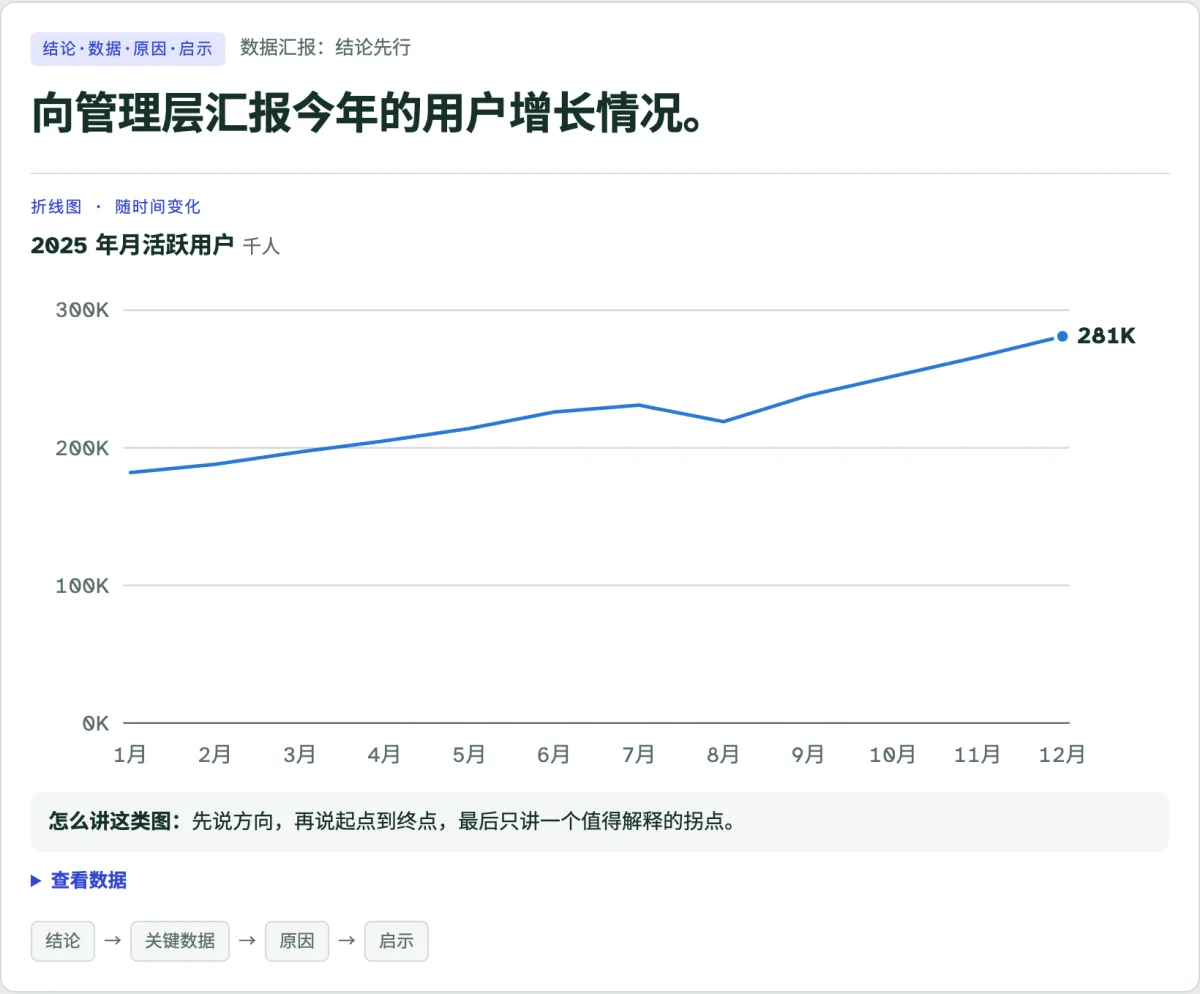
Chart prompt: Reporting this year's user growth to management, with tips on "how to talk through this type of chart."
The framework provided for this prompt is "Conclusion · Data · Cause · Takeaway." Each step comes with guidance as well as plug-and-play phrases you can use right away. You can either type your answer or use voice input—I recommend using voice input to practice your delivery. Start with the conclusion, back it up with two or three numbers, and then explain the specific causes and recommendations.
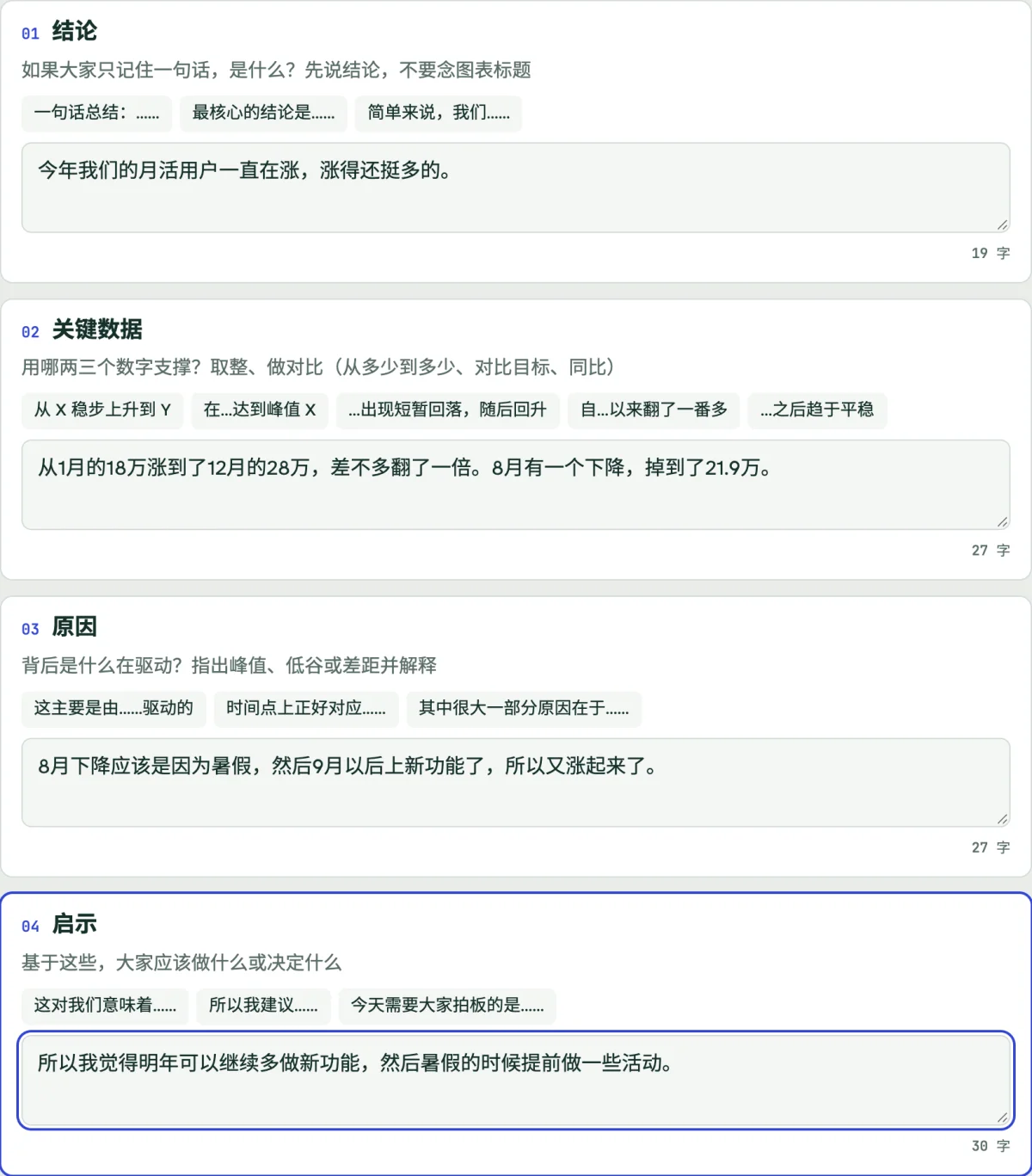
Answer in four steps: Conclusion · Data · Cause · Takeaway, each with cues and ready-to-use phrasing.
Once you've entered everything, click "Get Feedback." The interface displays scores across four dimensions: Structure, Clarity, Word Choice, and Naturalness. Below that, specific revision suggestions show exactly which sentences can be phrased better.

Four scores after getting feedback: Structure, Clarity, Word Choice, and Naturalness.
Below the scores are a model answer and a read-along script. The read-along script marks pauses and stresses, so you can play it sentence by sentence and practice reading aloud.
If you have a real-life speaking task to prepare for, choose "Custom Scenario" and describe it in a sentence or two—such as "Explain a two-week project delay at Friday's team sync." Click "Generate Guide," and you'll get a tailored prompt and framework, complete with practical phrases for each step.
English Section
Switch to the English section. Here, let's draw a workplace prompt: pitching your manager to take the lead on a project.
Once drawn, it displays a suggested framework—here it is "Problem, Solution, Benefits, Next Steps." If there are words you don't know how to say in English while entering your response (for example, "全局视野"), you can just write them in Chinese.
Click "Get Feedback," and all the coaching in the English section is in English. You can see the four dimension scores. The revision suggestions analyze your input sentence by sentence and provide natural English equivalents for any Chinese words you used.
Next is the rewritten model answer, with upgraded vocabulary highlighted in yellow.
The English read-along script adds liaison markings: red curves indicate liaisons, slashes denote pauses, and bold text shows stress. You can slow down the playback speed to shadow sentence by sentence; once you feel confident, click "Play All" to speak along.
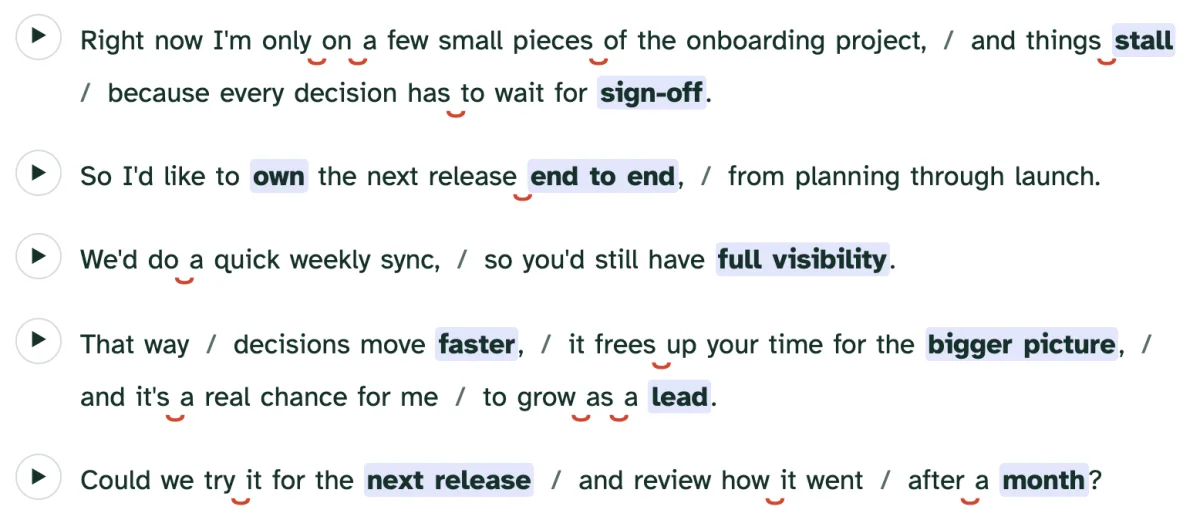
English read-along script: Red curves indicate liaisons, slashes denote pauses, and bold text shows stress.
Finally, there are vocabulary cards. If there's a new word you want to remember, click "Add to Notebook" to save it to your phrasebook.
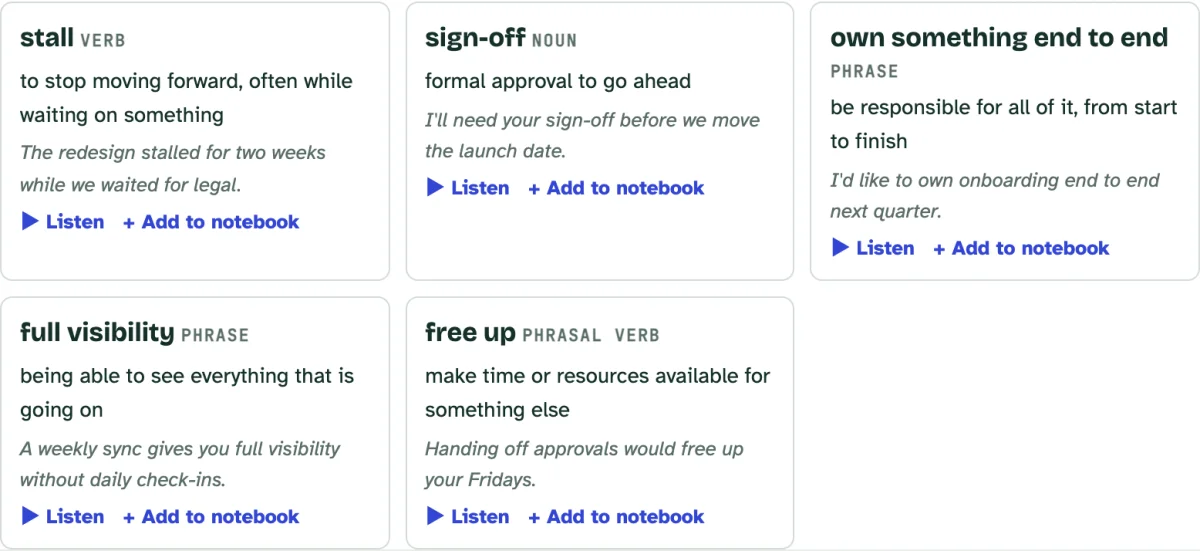
Vocabulary cards that can be added to your phrasebook.
Two More Ways to Use It
Beyond standard use, the tool also supports two other formats:
- Web Version: Open it as a Claude Artifact. The guide and feedback run on your own Claude account; your phrasebook and practice history stay stored only in your browser.
- MCP Server: Connect it to MCP-compatible assistants like ChatGPT or Claude, and practice cards and feedback cards render right in your conversation. The server doesn't store API keys or make model calls. The public instance URL is
https://frame-speak-mcp.aitoolscollection.workers.dev/mcp.
Related links: - Project Code - Demo Video (YouTube)