I believe that in the AI era, robotics is bound to take off. Driven by curiosity, I tried building a robotic arm at home and running a few simple operations with it. The whole build took around 6 hours.
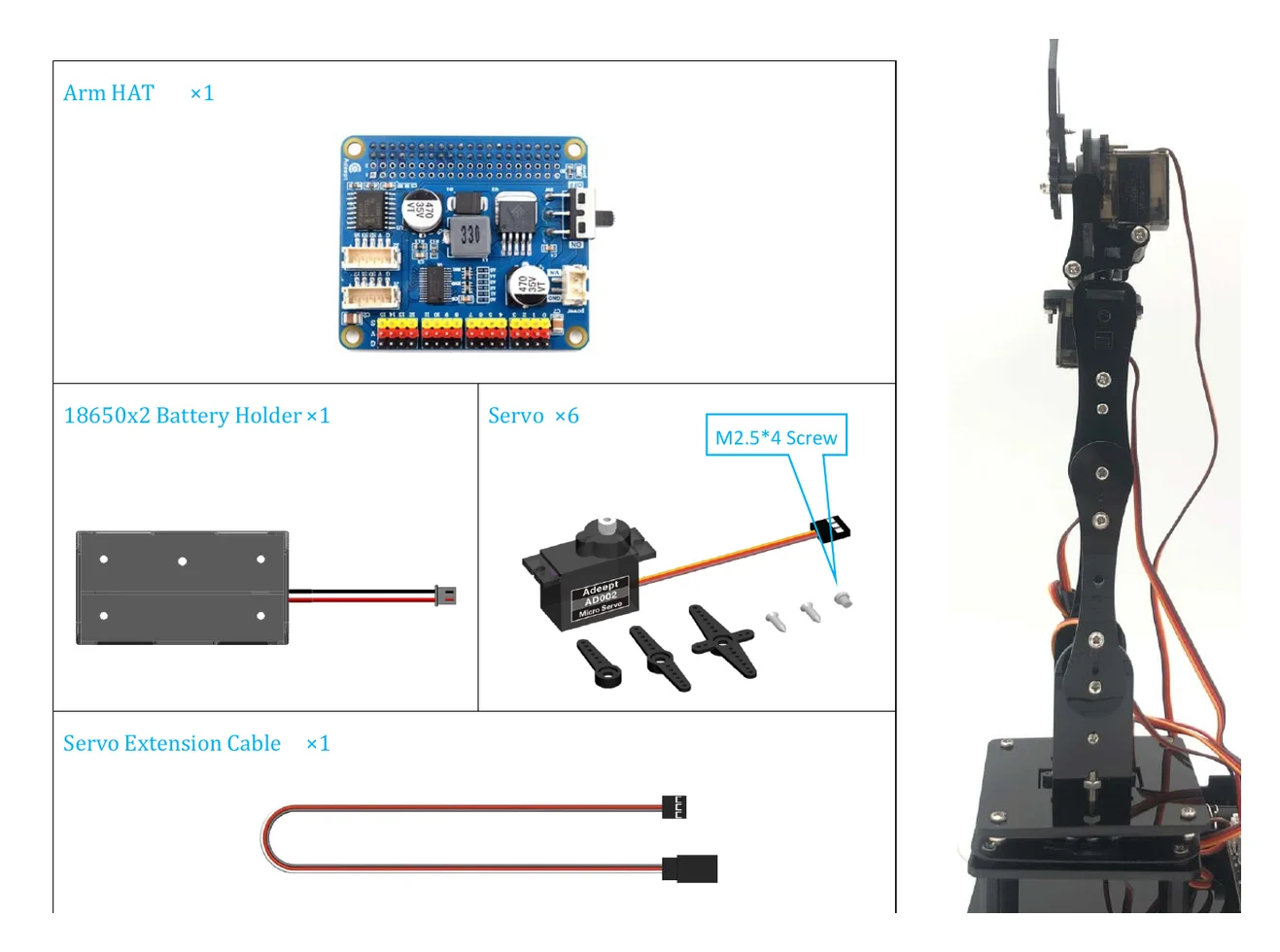
Left: HAT expansion board, battery holder, and servos from the kit; Right: The assembled robotic arm. Images from Adeept's official tutorial.
Gathering the Materials
I recommend setting up an open, clean workspace first. Here are the core materials I used:
- SD Card & Card Reader: An SD card with at least 16GB of storage to flash the OS. If you don't have a card reader, you'll need one—this step costs around $10.
- Raspberry Pi 4B: Basically the computer for the whole setup. I bought mine on Amazon for around $70. The board has plenty of ports, so you can always plug in a monitor, keyboard, and mouse later.
- Robotic Arm Kit: The model is Adeept RaspArm ADR029, which costs about $70. It comes with servos, a HAT expansion board, a joystick, and structural pieces. You can download the manual directly from their documentation.
In total, the materials cost under $200 (not including the Raspberry Pi power supply).
Step 1: Flashing the OS on Mac
Insert the SD card into the card reader and plug it into your computer. I'm on macOS, so I used the official Raspberry Pi Imager tool to write the disk.
Here are the setup steps in Imager:
- For the operating system, choose Raspberry Pi OS (Legacy) with desktop environment. This is recommended by the official tutorial to avoid missing dependencies in newer versions.
- Open settings and check the option to enable SSH (it's disabled by default).
- Set up the hostname, username, password, and Wi-Fi connection info.
- Click Write to flash the OS and configuration onto the SD card.
Step 2: Powering On and Checking the Status
Once flashing is complete, pop the SD card into the Raspberry Pi.
Before powering on, make sure to distinguish between the two separate power inputs:
- Raspberry Pi Board Power: Needs at least a 5V 3A power supply plugged into the Type-C port.
- Robotic Arm Power: The kit includes two batteries specifically designed to power the HAT expansion board—don't confuse this with powering the Raspberry Pi itself!
Once you connect the Type-C power to the Raspberry Pi, the red light on the board will stay solid. The green light next to it will blink rapidly at first, then slow down gradually. If you have trouble connecting via SSH later, wait until the green light stabilizes before trying again.
Step 3: Connecting Remotely via SSH
After confirming the indicator lights, open Terminal on your Mac and type the connection command:
ssh 用户名@主机名.local
The username and hostname here are the exact names you set up earlier in Imager. Press Enter and type in your password, and your Raspberry Pi will connect to your Mac over Wi-Fi.
Step 4: Assembling the Arm and Joystick Control
Power off the Raspberry Pi first, then mount the kit's HAT expansion board onto the Pi and plug the servos and joystick into their corresponding ports.
Start assembling according to the official manual downloaded with the kit files. Lessons 6 and 7 in the manual cover the assembly steps and precautions in detail; putting together the main body takes about 4 to 5 hours.
Once it's all put together, run these commands in the SSH terminal you opened earlier:
cd adeept_adr029/server
sudo killall python3
sudo python3 joystickControl.py
The first command navigates to the code directory. The second stops the background script that runs on startup—if the terminal says no process found, you can safely ignore it. The third command starts up the joystick control program, and after that, you can control the arm's movements right from the included joystick.
Once I have more free time, I might mount a camera or wire up voice input to keep tinkering with more features.